

Technology Services has implemented mandatory minimum macOS versions to increase district cybersecurity. It is time for all Mac computers to be updated to OS version 26.2.
If you have not initiated the update before February 27 at 7:00pm, it will begin automatically when the computer is powered on.
It's important to remember to restart your computer and connect to power before initiating the update.
To initiate the software update:
- Click the Apple at the top left corner of the computer screen.
- Click System Settings and then click Software Update Available. Alternatively, you can also click General > Software Update.
- Click Upgrade now to the right of "macOS Tahoe 26.2".
- You will be prompted to enter your district username and password.
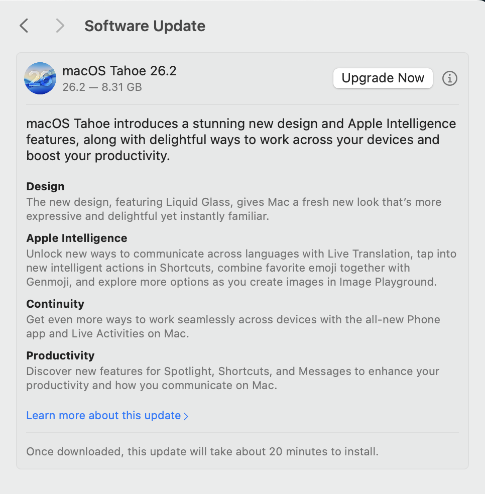
The update will begin and could take up to 30 minutes to complete. The computer will restart when finished:
- After the update and logging back in, click Continue, take the tour or click Skip.
- Next, click Get Started on the Welcome screen.
- The computer will finish logging in.
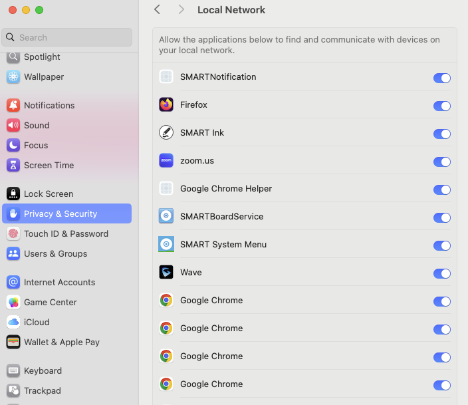
- If the computer prompts you to allow access to devices on your local network, click Allow. This allows access to HS announcements, the tech wiki, and other local content. You can also follow the steps below to confirm that apps have the necessary access.
Additionally, after updating your macOS, you'll need to adjust network permissions to access HS announcements, the Tech Wiki, and other local content. Tipsheet:
- Click the Apple at the top left corner of the computer screen.
- Click System Settings.
- Click Privacy & Security.
- Click Local Network and allow access for apps like Google Chrome, Firefox, and the CCTV Client.
If you encounter any issues or have questions, please contact the Technology Services Helpline at extension 11199 or submit a tech request through IncidentIQ.

